In progress
The platform step by step How Edusimo works
From assigning a course to the certificate in a few steps. Every screenshot on this page comes from the working app. The platform is in progress, so we show it on a demo.
From assignment to certificate
In progressCreate an account and add people
Add people one by one or from a list and put them in groups, for example Warehouse and Office. Learners sign in with an email link, no password.
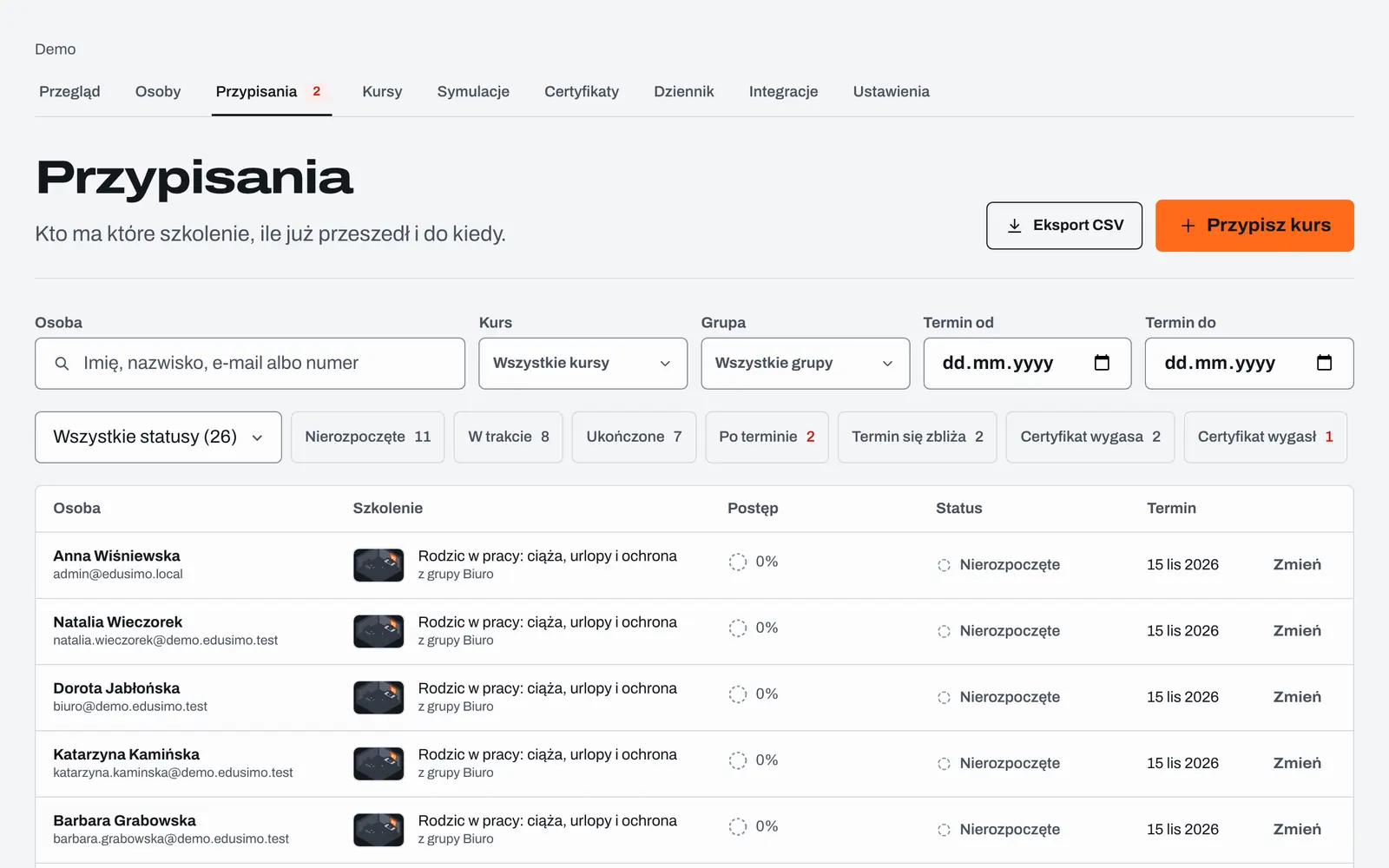
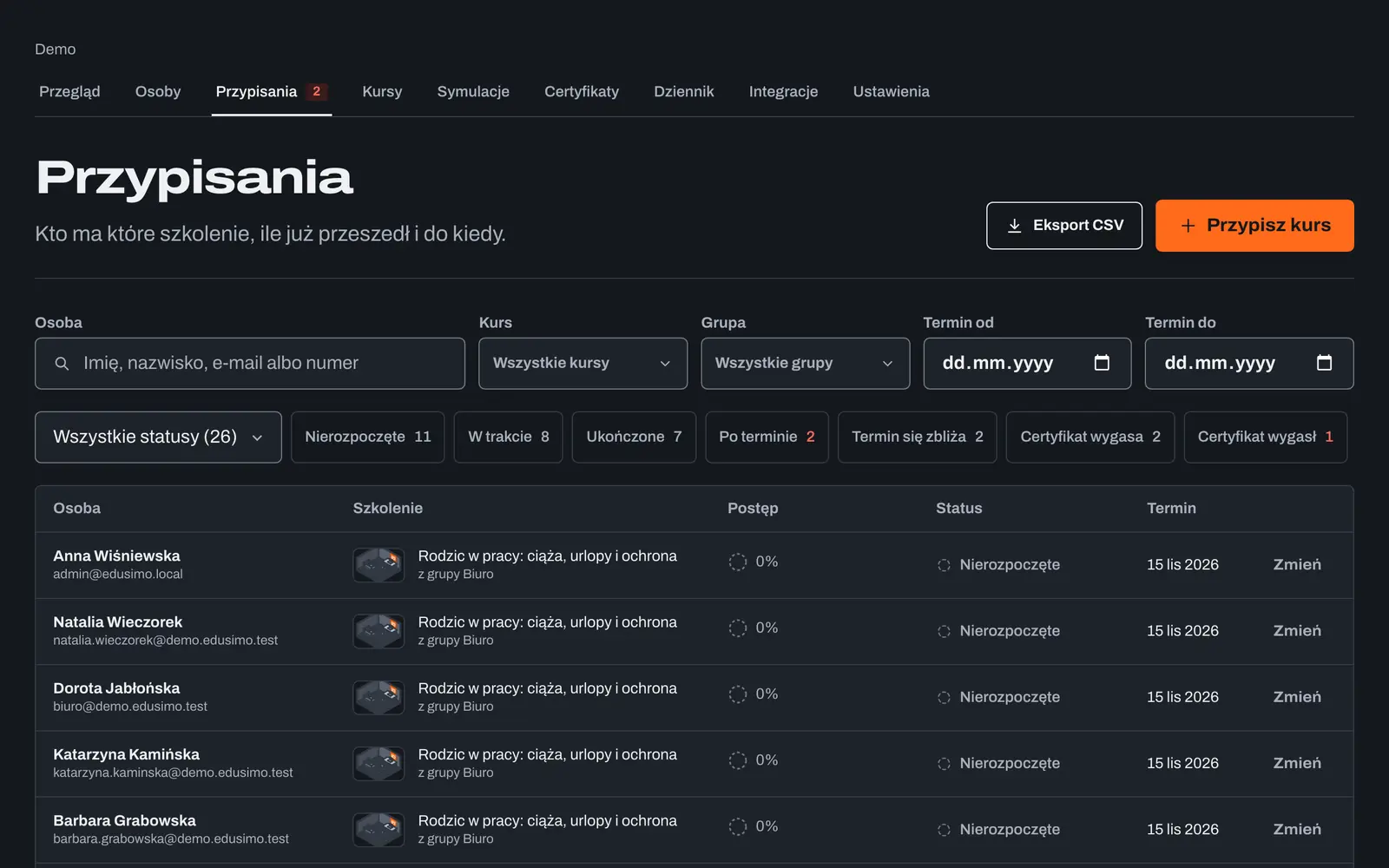
People, assigned courses and statuses in one list. Test data, interface in Polish. Assign a course with a due date
Pick the course, people or whole groups and a due date. Everyone gets an email with a link to the course.
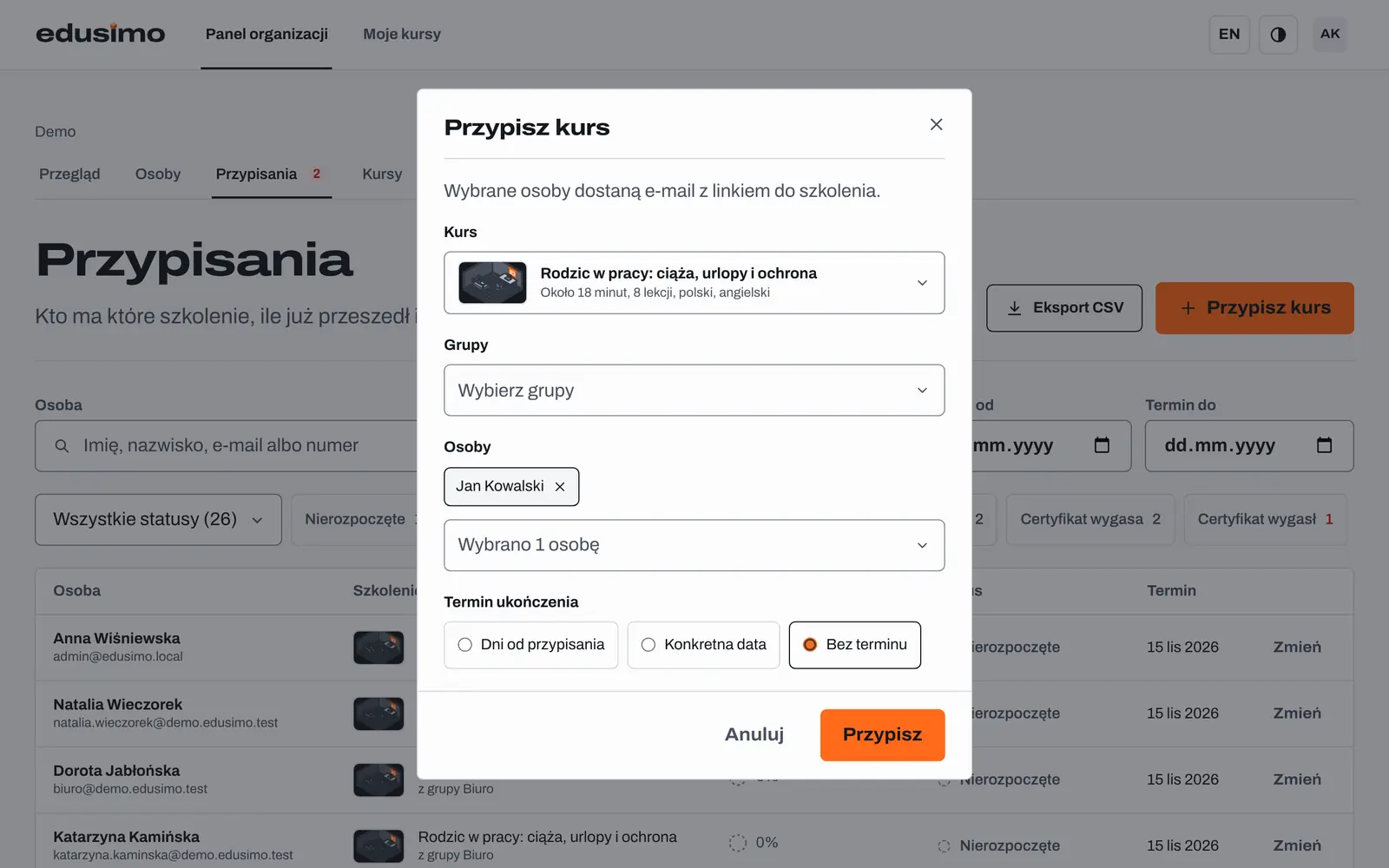
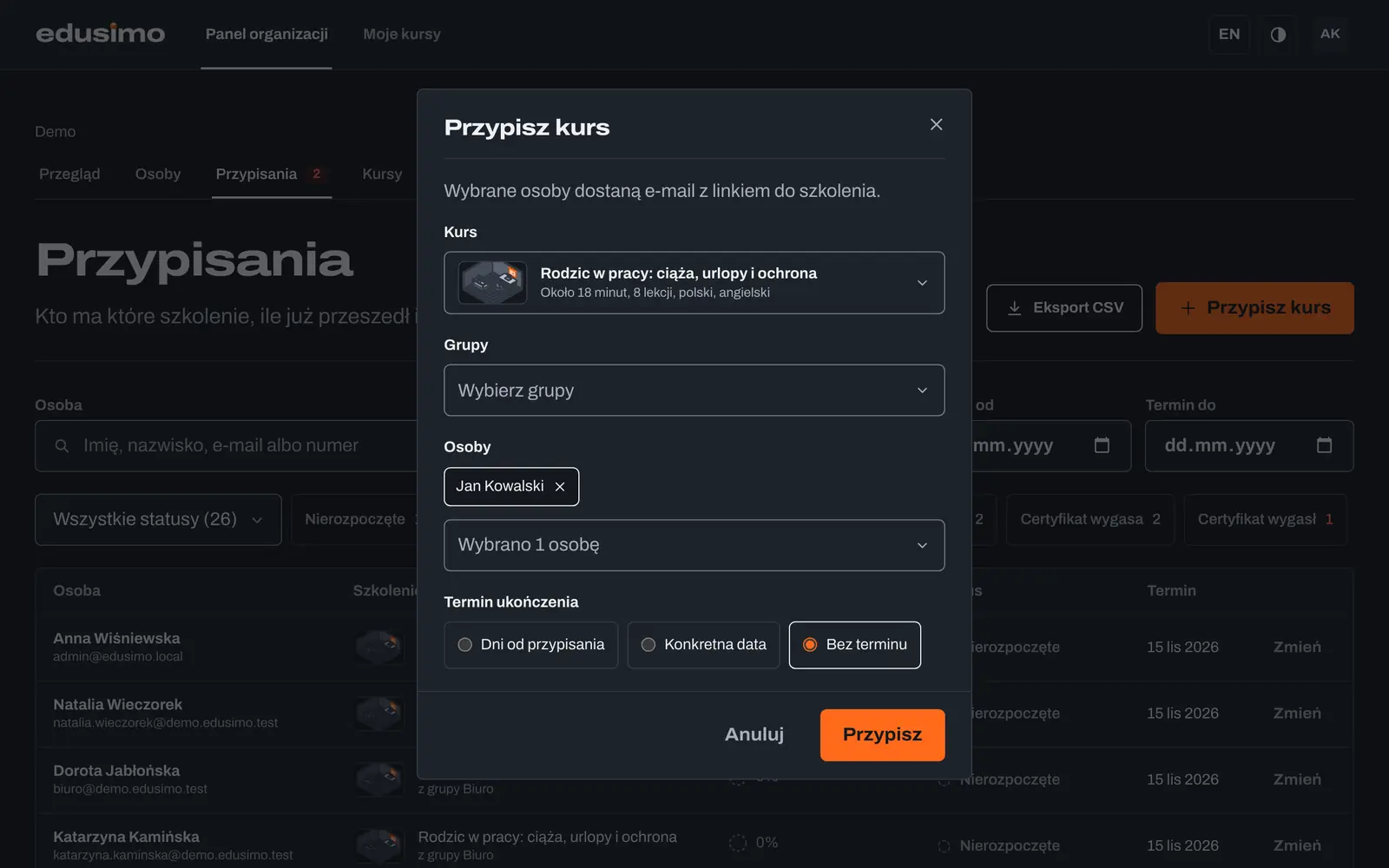
Assigning a course to people or a whole group, with a due date. Interface in Polish. The learner studies in the browser
Short narrated slides with subtitles. Works on a computer and a phone, progress saves itself.
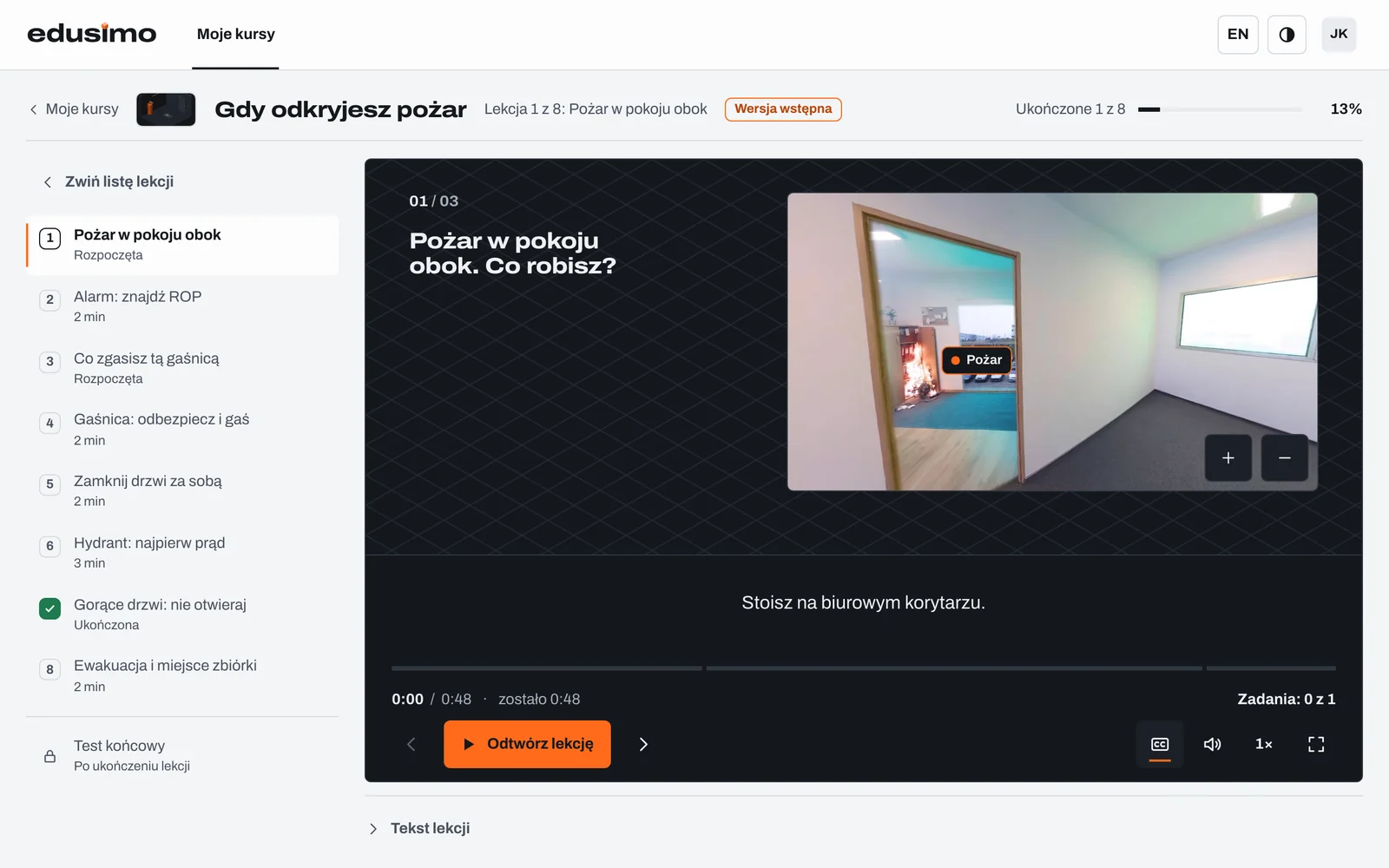
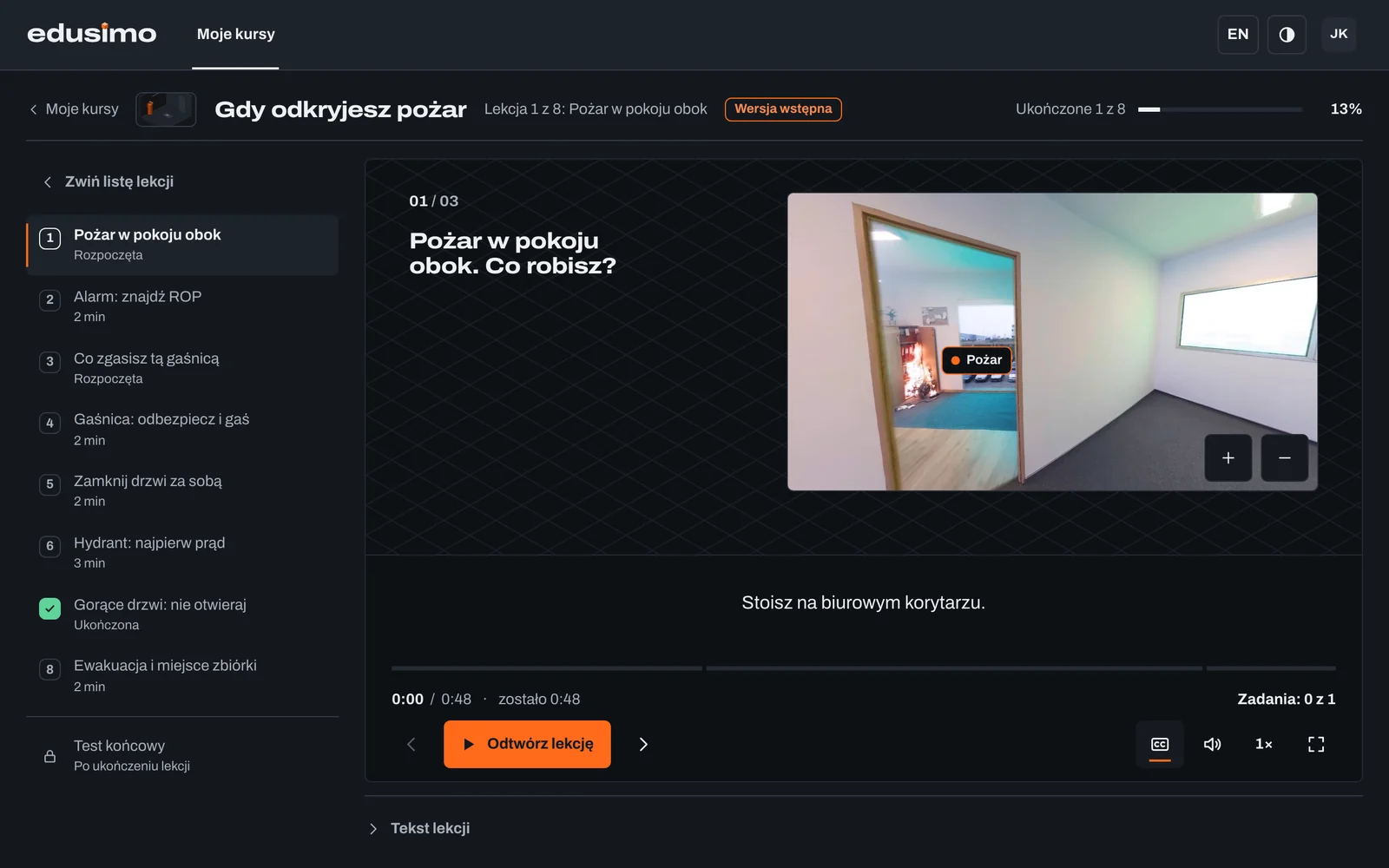
A lesson in the player: slide, narration and subtitles. Interface in Polish. They try it in a task
A task with feedback after every topic. The learner makes the decisions and sees the result at once.
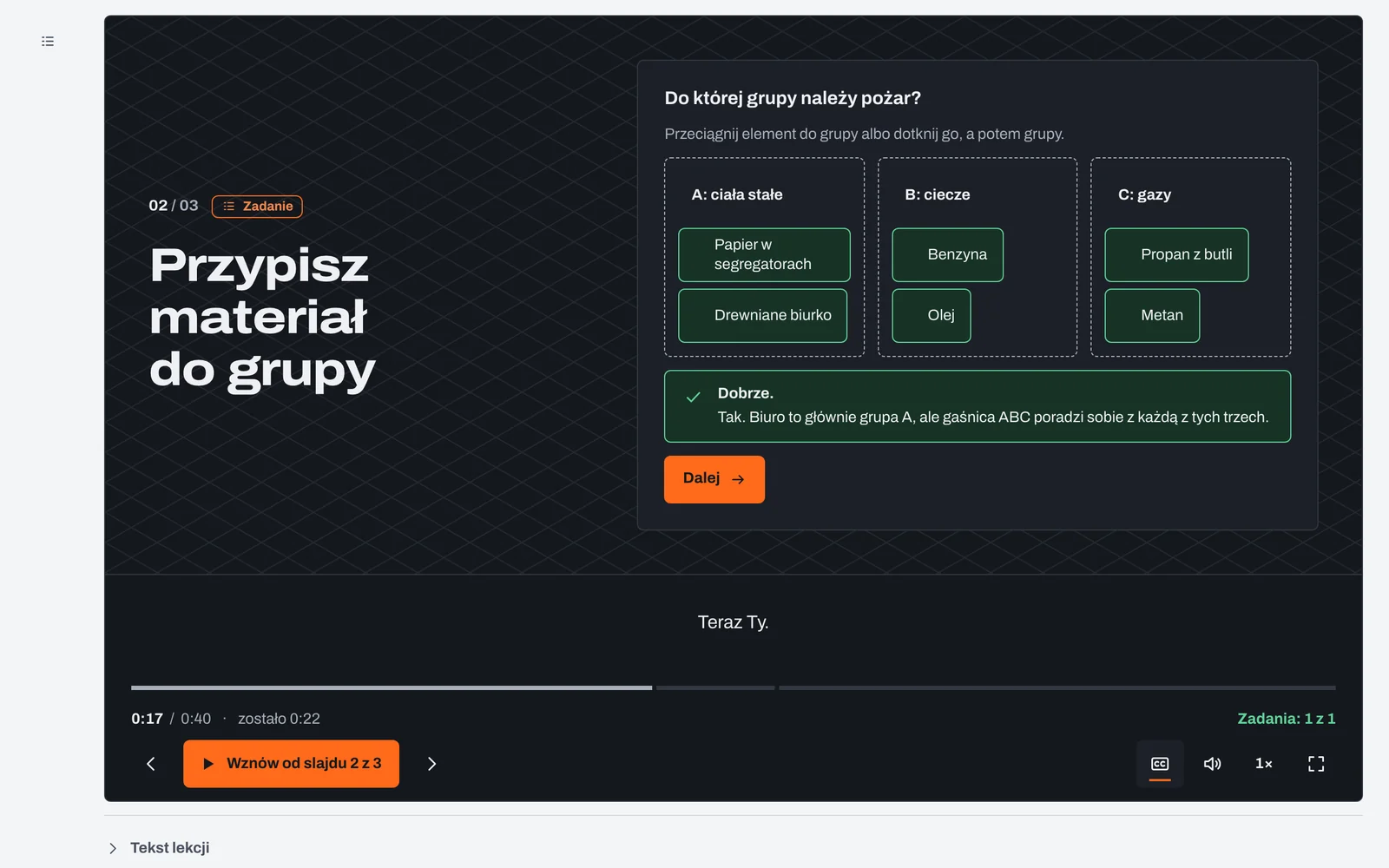
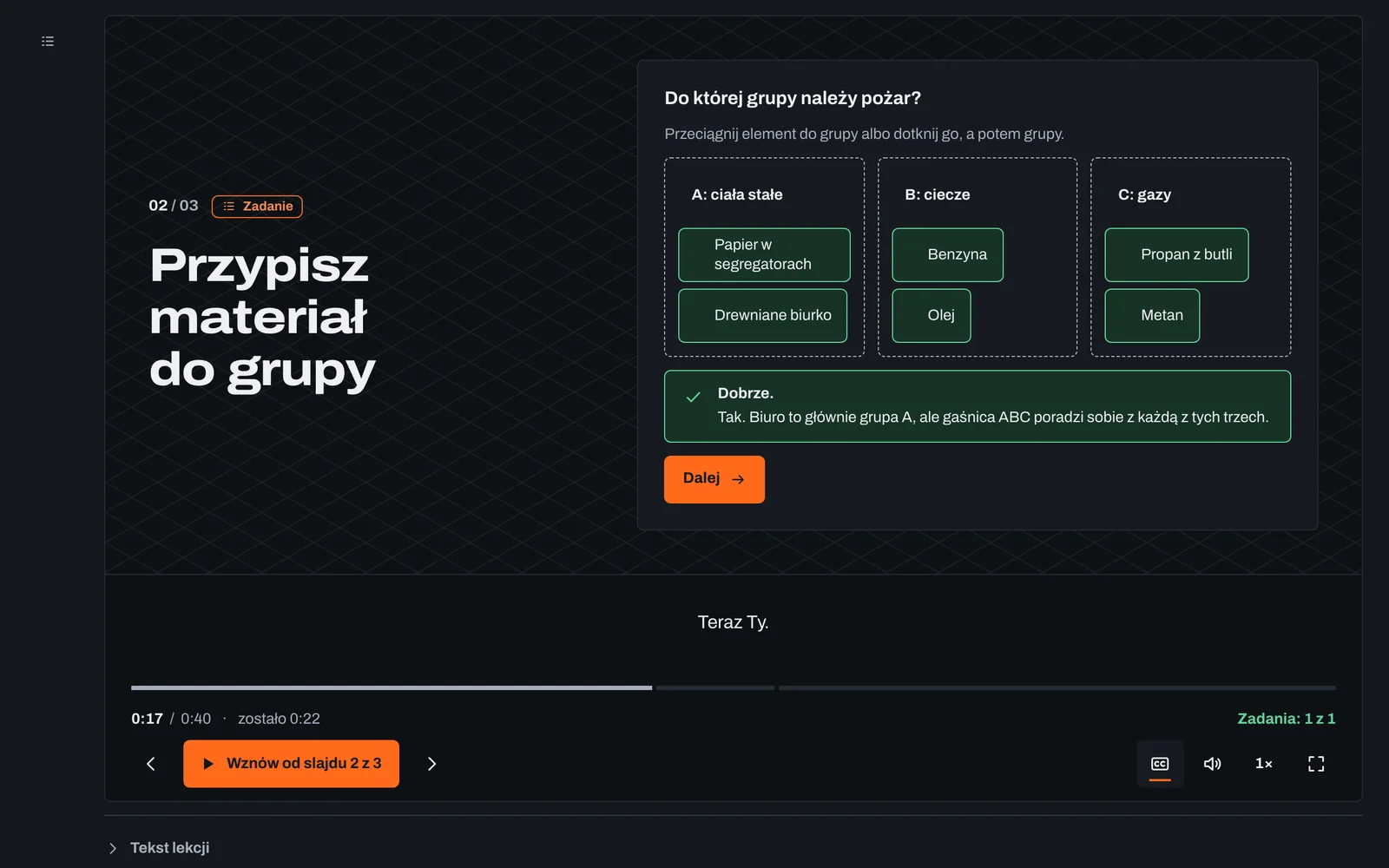
A task right after the topic, with feedback. Interface in Polish. They pass the test and get a certificate
The server marks the test, so the correct answers cannot be read in the browser. The PDF certificate has a code anyone can check on the verification page.
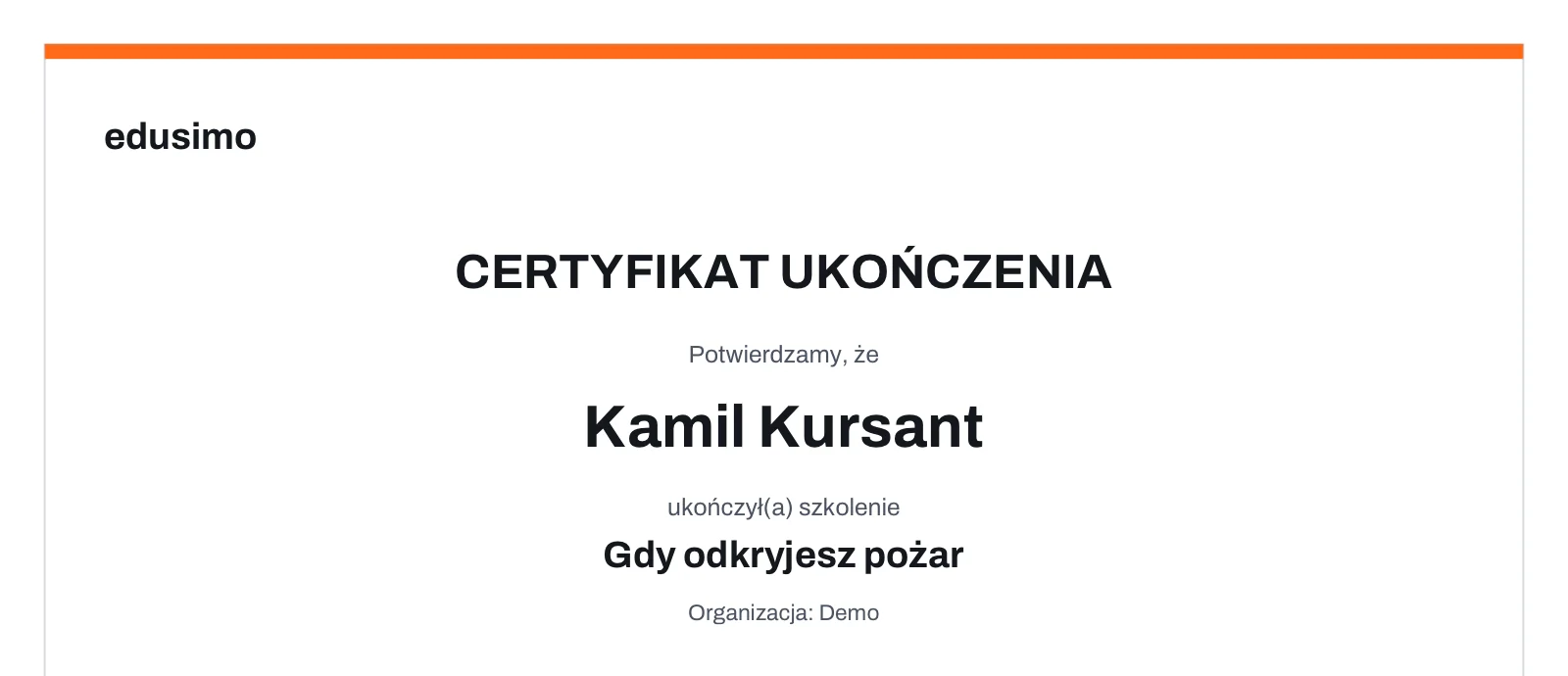
Completion certificate in PDF. It has a number and a code anyone can check on the verification page. Interface in Polish. You see the progress
The overview shows if there is a problem and what to click: who has not started, whose due date is close, who finished.
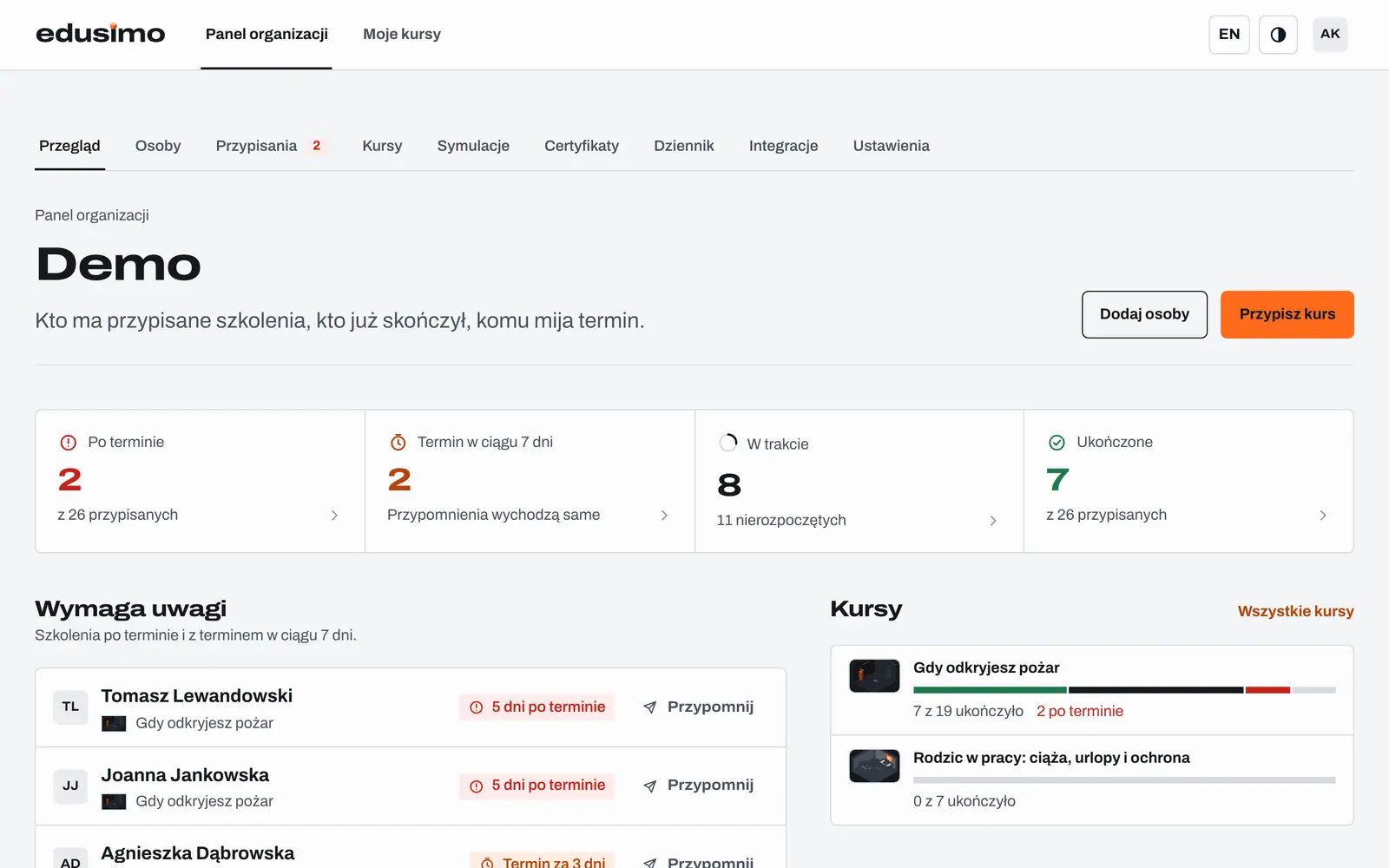
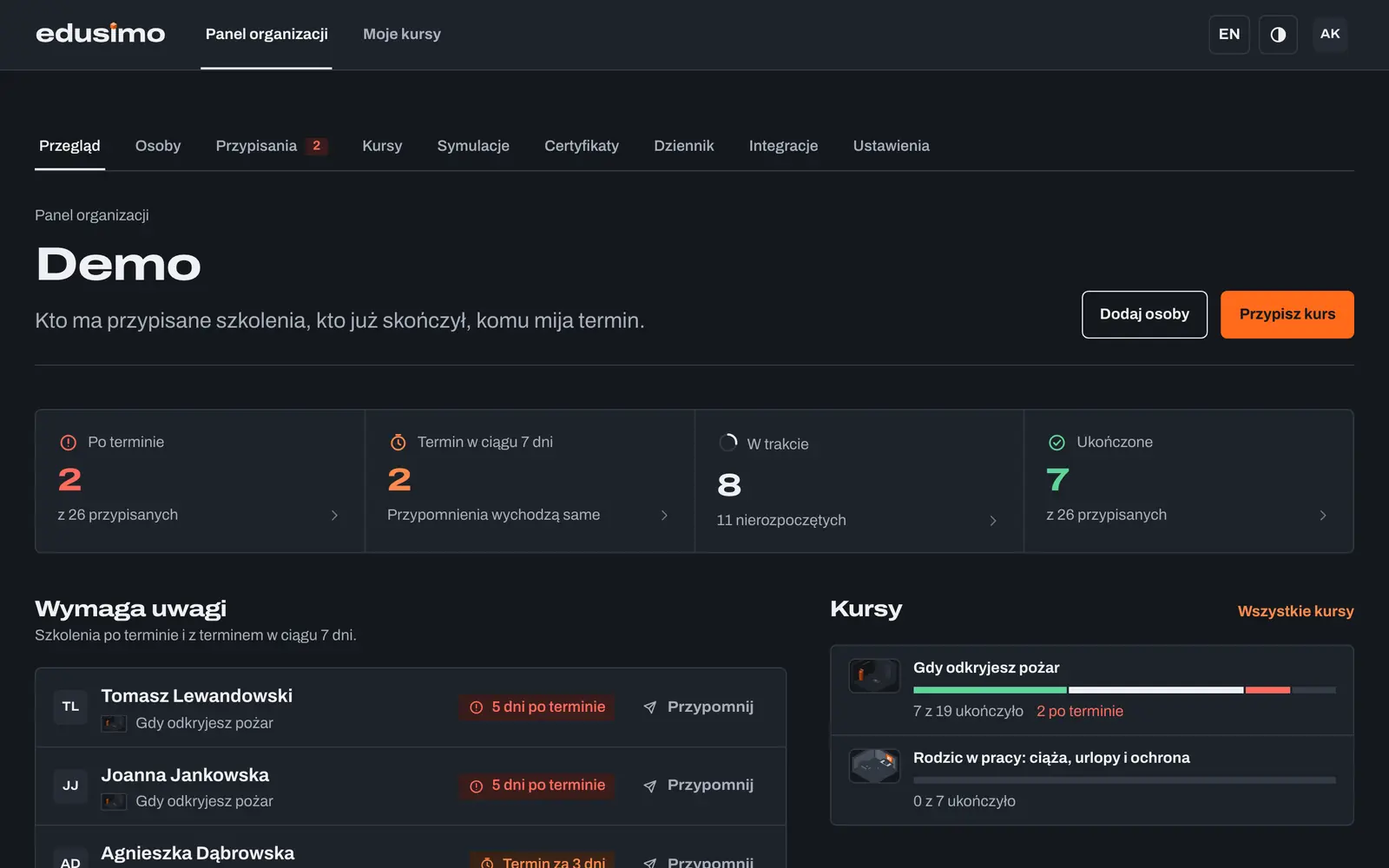
Company dashboard: you see at once if there is a problem and what to click. Demo account with test data, interface in Polish.
Already have an LMS?
You do not have to move your people to us. Download the same course as a SCORM package and run it in your system. Completion and score go back to your LMS.
Questions and answers
- Do learners need an account with a password?
- No. Learners sign in with an email link. Administrators can also turn on passkeys and authenticator codes.
- Can I assign a course to a whole department?
- Yes. Put people in groups and assign the course to the group, with a due date.
- How do I check that a certificate is genuine?
- Every certificate has a code. Enter it on the verification page to see whether the certificate exists and what it covers.
- When can I start using the platform?
- The platform is in progress. On a demo we will show it live and agree a start date for your company.
We'll show you a lesson live
Thirty minutes online. You'll see a lesson, a task and the company dashboard, and we'll talk about what you need.